
Understanding Safe Area in Print Design
Have you ever spent hours perfecting a brochure or flyer, only to receive the final printed batch and ask yourself in frustration, “Why is my text cut off after printing?” If so, you have experienced one of the most common pitfalls in design for print: ignoring the safe area.
Creating a beautiful layout on a digital screen is only half the battle. When transitioning from digital pixels to physical paper, your file undergoes a rigorous mechanical process involving printing presses, guillotines, and folding machines. Understanding the boundaries of your layout is the key to ensuring your final product looks exactly as you intended.
Here is everything you need to know about navigating the safe area, avoiding common print design mistakes, and collaborating seamlessly with your printing partner.
What is the Safe Area?
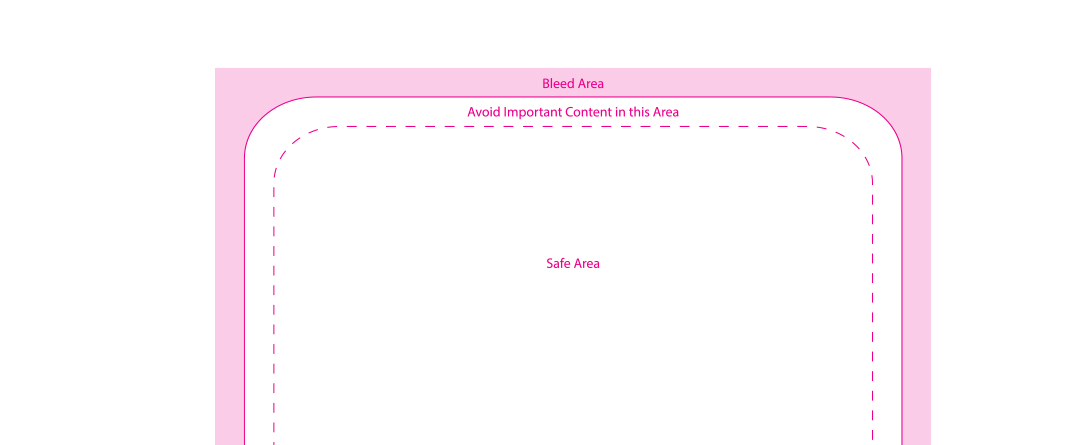
The safe area in documents for printing is the designated zone inside your layout where all crucial elements—like text, logos, and important graphics—must be placed to guarantee they won’t be sliced off during the final trimming process.
To truly understand this concept, you need to know the difference between live area and trim size. The “trim size” is the exact, final physical dimension of your printed piece (for example, an A5 flyer). The “live area” (another term for the safe area) is the slightly smaller, invisible boundary inside that trim size.
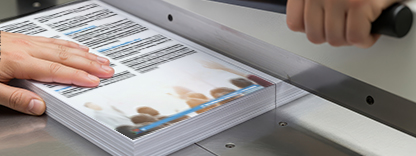
Why do we need this boundary? Because of industrial paper cutting tolerances for layouts. Commercial paper guillotines cut through hundreds of sheets of paper at once. As the blade comes down, the paper can shift by a fraction of a millimeter. This slight mechanical variance or tolerance—known as paper shift—means the blade might cut slightly inside or outside your intended trim line. The safe area acts as an insurance policy against this mechanical reality.
The Holy Trinity: Print Bleed vs Safe Area vs Trim Line
To master commercial printing, you must grasp how three specific boundaries work together. A proper layout always accounts for the print bleed vs safe area vs trim line:
- The Trim Line: The exact line where the printer aims to cut the paper to achieve the final document size.
- The Bleed: An extra area (usually no less than 3mm) that extends outside the trim line. You extend your background colors and images into this area. If you’ve ever wondered how to prevent white borders on prints when the blade shifts slightly outward, bleed is your answer.
- The Safe Area: The buffer zone inside the trim line. Keeping your text here ensures it won’t be sliced if the blade shifts slightly inward.
If you have ever had crop marks and registration marks explained to you by a printer, you know that these printer marks sit outside the layout to guide the cutting blade and align the ink plates. However, they only indicate the trim—they do not protect the inner contents of your design. That responsibility falls entirely on your safe area margins.
Why the Safe Area Matters Beyond the Guillotine
While keeping text from being chopped off is the primary goal, honoring the safe zone impacts other critical aspects of your project.
When laying out a multi-page document like a catalog or a perfect-bound book, you must account for the importance of gutter margins in binding. The gutter is the space where the pages are glued or stitched together at the spine. If your safe area doesn’t leave enough room on the inside edge, your text will be sucked into the binding, making the document impossible to read without breaking the spine.
Furthermore, generous margins simply look more professional. Crowding text right up to the edge of the page creates visual tension and makes your design look cluttered and amateurish.
Graphic Design Safe Zone Measurements
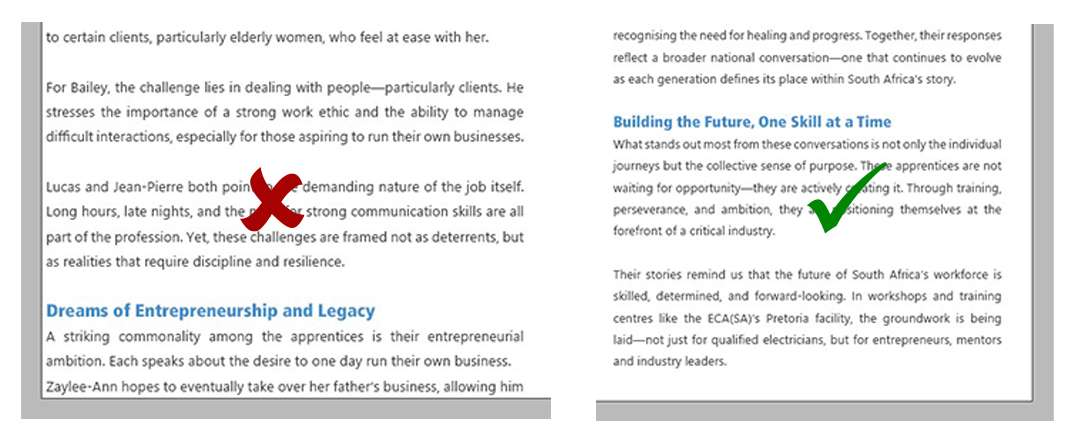
What exact numbers should you be using? While specific projects vary, standard margin settings for professional printing generally dictate keeping all critical elements at least 3mm to 6mm away from the trim edge. Items like page numbers look uneven if not positioned a good distance from the trim area. Think of the processes and err on the side of caution so that after trimming nothing looks too close and uncomfortable to the eye.
For larger formats like posters or banners, graphic design safe zone measurements should be increased proportionally, often requiring a safe zone of 12 mm or more to account for heavier cutting machinery and framing.
Working With Your Printer for Flawless Results
Successfully navigating the safe area in print documents: what it is, why it matters, and how to work with your printer (including Remata) to avoid cut-off text and graphics requires proactive communication.
When preparing documents for commercial offset printing, don’t guess—ask your printer for their specific requirements. For instance, consulting the Remata pre-press submission guidelines before you even begin your design will tell you exactly what bleed dimensions, safe zones, and color profiles their specific presses require.
A good commercial printer is your partner. If you submit a file where text creeps dangerously close to the edge, a high-quality reputable print shop like Remata will flag it during the pre-press proofing stage rather than running the job and letting your text get ruined. You will have to check your proof though and make the changes they suggest otherwise signing off the proof will mean they go to print with your approval of soemthing being too close or in danger of being cut off or through. However, setting up your file correctly from the start saves everyone valuable time and money.
Practical Steps: Setting Up Your File
Translating this knowledge into your digital workspace is straightforward if you use professional design software.
When setting up bleed in Adobe InDesign, create a new document and look under the “Bleed and Slug” section to input your 3mm bleed. To establish your safe area, utilize the “Margins” setting to create a visible guideline (minimum of 3mm to 6mm) inside your page. Keep your text boxes strictly inside this magenta margin box, and drag your background images all the way out to the red bleed line.
Once your design is complete, you must know how to prepare print-ready PDF files so the printer actually receives your safety settings. When exporting, choose “High Quality Print” or “PDF/X-4,” and ensure you check the box that says “Use Document Bleed Settings.” Also, check the option to include crop marks so the printer knows exactly where the trim line is.
Your Essential Pre-Flight Checklist
Before you hit send on that final file, run through this essential pre-flight checklist for print designers:
- Check the Safe Zone: Is all crucial text, logos, and data at least 3mm to 6mm away from the trim edge?
- Verify Bleed: Do your background colors and edge-to-edge images extend fully to the bleed line?
- Assess the Gutter: For bound books, did you leave extra safe space on the spine-side margins?
- Convert Fonts: Have you embedded your fonts or converted text to outlines to prevent formatting shifts?
- Review Printer Specs: Have you cross-referenced your file with your printer’s specific submission guidelines?
Designing for the physical world requires a blend of creative vision and mechanical foresight. By respecting the safe area, utilizing proper bleeds, and communicating clearly with your printing partner, you can ensure that the final product in your hands looks just as flawless as the layout on your screen.